

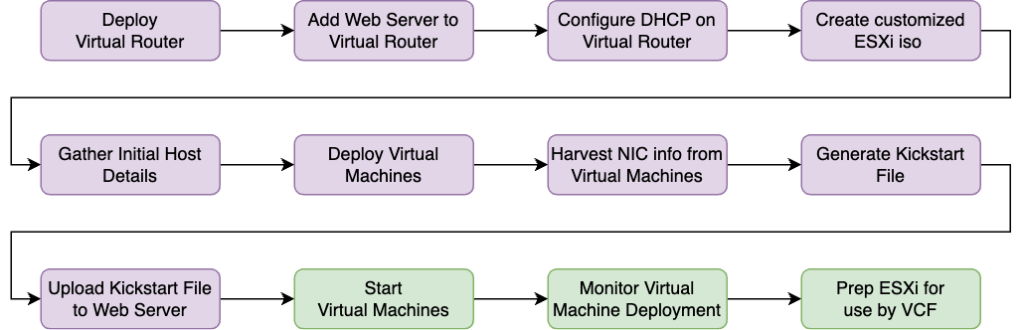
In Part 1 of this post I covered setup of the environment, creating the nested host VMs themselves and configuring kickstart. Basically we did everything in purple in this workflow. In this post I’ll cover the last three steps required to get these nested hosts deloyed and prepped for VMware Cloud Foundation (VCF) bringup or VI workload domain creation. (Note: I revised Part 1 of this series, so check back if you read the original version).
Understanding the code
The functions shown here are using the same logic mentioned in reusing functions in multi-threaded PowerShell scripts, i.e. the functions are all part of a module, so that it can be imported and the functions reused. You will notice the following line in each of the scriptblocks where it imports itself for this purpose.
Import-Module "$using:modulePath\myModule.psm1"Parent Function
Start-NestedHostFinalConfiguration
In my case, all three steps are actually carried out by a single function that calls a series of smaller functions. This is the parent function and it takes care of starting the VMs, monitoring the host through their two phases of deployment and then their subsequent post-configuration.
Function Start-NestedHostFinalConfiguration
{
    Param (
        [Parameter (Mandatory = $true)] [Array]$hostInstances,
        [Parameter (Mandatory = $true)] [PSObject]$otherParameters
    )
    Connect-VIServer -Server $otherParameters.vCenterFqdn -user $otherParameters.vCenterUser -password $otherParameters.vCenterPassword | Out-Null
    Write-Host " [All Hosts] Starting Nested Hosts"
    Get-VM -name $hostInstances.vmname | Start-VM -confirm:$false | Out-Null
    #Monitor Phase 1 of ESXi Deployment
    Wait-EsxiHostsUp -hostObjects $hostInstances -operation "Build Phase I"
    Wait-EsxiHostsDown -hostObjects $hostInstances -operation "Build Phase I"
    #Monitor Phase 2 of ESXi Deployment
    Wait-EsxiHostsUp -hostObjects $hostInstances -operation "Build Phase II"
    $modulePath = (Get-Location).path
    Get-SSHTrustedHost | Remove-SSHTrustedHost | Out-Null
    $newScriptBlock = {
        Import-Module "$using:modulePath\myModule.psm1"
        $hostConnection =  New-HostConnection -hostObject $using:hostInstance -otherParameters $using:otherParameters
        Set-EsxiNtp -hostObject $using:hostInstance -otherParameters $using:otherParameters
        Disconnect-viserver -Server $using:hostInstance.mgmtIp -Force -Confirm:$false -WarningAction SilentlyContinue
        New-HostCerts -hostInstance $using:hostInstance -otherParameters $using:otherParameters
        Set-VpxaTimeout -hostinstance $using:hostinstance -otherParameters $using:otherParameters
        Set-NestedHostMacAddresses -hostinstance $using:hostinstance -otherParameters $using:otherParameters
    }
    $hostConfigurationJobs = Foreach ($hostinstance in $hostInstances)
    {
        Start-Job -scriptblock $newScriptBlock -argumentlist ($otherParameters,$hostinstance,$modulePath)
        Sleep 5
    }
    Get-Job $hostConfigurationJobs.id | Receive-Job -Wait -AutoRemoveJob
    Disconnect-VIServer * -Force -Confirm:$false
    #Monitor for ESXi availability after post-config
    Wait-EsxiHostsUp -hostObjects $hostInstances -operation "Post Configuration"
}
Here is the function in action

Supporting Host Monitoring Functions
Wait-EsxiHostsUp
As the name suggests this takes an array of hosts and continually does a basic network connectivity test until they are up.
Function Wait-EsxiHostsUp
{
    Param (
        [Parameter (Mandatory = $true)] [Array]$hostObjects,
        [Parameter (Mandatory = $true)] [Array]$operation
    )
    Write-Host " [All Hosts] Waiting for hosts to be available after $operation"
    $Global:finishedHosts = @()
    Do {
            #Clear-Content  bugshare\$processUuid\temp.txt
            Foreach ($hostInstance in $hostObjects) {
                If ($hostInstance.mgmtIp -notin $finishedHosts) {
                    IF (Test-SilentNetConnection -ComputerName $hostInstance.mgmtIp) {
                        Write-Host " [$($hostInstance.hostname)] Host is Up"
                        $Global:finishedHosts += $($hostInstance.mgmtIp)
                    }
                }
            }
            Sleep 10
        } Until ($finishedHosts.count -eq $hostObjects.count)
}
Wait-EsxiHostsDown
The inverse of the previous function this takes an array of hosts and continually does a basic network connectivity test until they are down.
Function Wait-EsxiHostsDown
{
    Param (
        [Parameter (Mandatory = $true)] [Array]$hostObjects,
        [Parameter (Mandatory = $true)] [Array]$operation
    )
    $Global:finishedHosts = @()
    Write-Host " [All Hosts] Waiting for hosts to be go down after after $operation"
    Do {
            #Clear-Content  bugshare\$processUuid\temp.txt
            Foreach ($hostInstance in $hostObjects) {
                If ($hostInstance.mgmtIp -notin $finishedHosts) {
                    If (!(Test-SilentNetConnection -ComputerName $hostInstance.mgmtIp)) {
                        Write-Host " [$($hostInstance.hostname)] Host is Down"
                        $Global:finishedHosts += $($hostInstance.mgmtIp)
                    }
                }
            }
            Sleep 10
        } Until ($finishedHosts.count -eq $hostObjects.count)
}
Test-SilentNetConnection
Both of the above in turn leverage this function. It does a Test-NetConnection but hides the output just to make the OSD a little cleaner
Function Test-SilentNetConnection
{
    Param (
        [Parameter (Mandatory = $true)] [String]$computerName
    )
    $OriginalPref = $ProgressPreference
    $Global:ProgressPreference = 'SilentlyContinue'
    $PSDefaultParameterValues['Test-NetConnection:InformationLevel'] = 'Quiet'
    $testResult = Test-NetConnection -ComputerName $computerName -warningAction SilentlyContinue
    $Global:ProgressPreference = $OriginalPref
    Return $testResult
}
New-HostConnection
This function does a deeper test once an ESXi host is successfully reachable on the network by attempting to make a PowerShell connection to the host and verify that its all ‘green’ before attempting to perform other operations on it.
Function New-HostConnection
{
    Param (
        [Parameter (Mandatory = $true)] [PSCustomObject]$hostObject,
        [Parameter (Mandatory = $true)] [PSCustomObject]$otherParameters
    )
    $hostUsername = $otherParameters.esxiUsername
    $hostPassword = $otherParameters.esxiPassword
    Write-Host " [$($hostObject.hostname)] Establishing IP and PowerCLI Connectivity"
    $counter = 1
    Do {
        $ConnectHost1 = Connect-VIServer $hostObject.mgmtIp -user $hostUsername -pass $hostPassword -erroraction SilentlyContinue
        If (($counter -eq 60) -OR ($connectHost1)){ Break }
        Start-Sleep 5
        $counter++
    }
    Until ($ConnectHost1)
    Write-Host " [$($hostObject.hostname)] PowerCLI connectivity established"

    If ($ConnectHost1) {
        Write-Host " [$($hostObject.hostname)] Checking Overall Host Status"
        Try
        {
            $checkedHost = Get-VMHost
        }
        Catch
        {
            $ConnectHost2 = Connect-VIServer $hostObject.mgmtIp -user $hostUsername -pass $hostPassword -erroraction SilentlyContinue
            If (!$ConnectHost2)
            {
                $counter = 1
                Do {
                    Start-Sleep 5
                    $counter++
                    $ConnectHost2 = Connect-VIServer $hostObject.mgmtIp -user $hostUsername -pass $hostPassword -erroraction SilentlyContinue
                    If ($counter -eq 10) { Break }
                }
                Until ($ConnectHost2)
                $checkedHost = Get-VMHost
            }
        }
        If ($checkedHost.ExtensionData.OverallStatus -ne 'green')
        {
            $counter = 1
            Do {
                Write-Host " [$($hostObject.hostname)] Host not yet fully started. Waiting and retrying."
                Start-Sleep 30
                $counter++
                $checkedHost = Get-VMHost
                If ($counter -eq 10) { Break }
            }
            Until ($checkedHost.ExtensionData.OverallStatus -eq 'green')
        }
        If ($checkedHost.ExtensionData.OverallStatus -eq 'green')
        {
            Write-Host " [$($hostObject.hostname)] Host is fully started"
            Return "Success"
        }
        else
        {
            Write-Host " [$($hostObject.hostname)] Host still not successfully started after $counter checks"
            Return "Failed"
        }
    }
    else {
        Write-Host " [$($hostObject.hostname)] PowerCLI connectivity failed after $counter attempts"
        Return "Failed"
    }
}
Supporting Post Configuration Functions
Set-EsxiNtp
This function will configure NTP on a deployed host, start/restart it to force a sync and set it to start with the host.
Function Set-EsxiNtp
{
    Param (
        [Parameter (mandatory = $true)] [Array]$hostObject,
        [Parameter (Mandatory = $true)] [PSObject]$otherParameters
    )
    $hostUsername = $otherParameters.esxiUsername
    $hostPassword = $otherParameters.esxiPassword
    $ntpServer1 = $hostObject.ntpServer1
    $ntpServer2 = $hostObject.ntpServer2

    Write-Host " [$($hostObject.hostname)] Configuring NTP and setting an auto-start policy"
    $CurrentNTPServerList = Get-VMHostNtpServer -VMHost $hostObject.mgmtIp -ErrorAction SilentlyContinue
    If ($CurrentNTPServerList -ne "") {
        ForEach ($NtpServer in $CurrentNTPServerList) {
            Remove-VMHostNtpServer -VMHost $hostObject.mgmtIp -NtpServer $ntpServer1 -Confirm:$false -ErrorAction SilentlyContinue | Out-Null
        }
    }
    Add-VMHostNtpServer -VMHost $hostObject.mgmtIp -NtpServer $ntpServer1 -Confirm:$false -ErrorAction silentlyContinue | Out-Null
    If (($ntpServer2) -AND ($ntpServer2 -ne "n/a") -AND ($ntpServer2 -ne "Value Missing")) {
        Add-VMHostNtpServer -VMHost $hostObject.mgmtIp -NtpServer $ntpServer2 -Confirm:$false -ErrorAction silentlyContinue | Out-Null
    }
    $SecurePassword = ConvertTo-SecureString -String $hostPassword -AsPlainText -Force
    $mycreds = New-Object System.Management.Automation.PSCredential ($hostUsername, $SecurePassword)
    Do
    {
        $sshSession = New-SSHSession -computername $hostObject.mgmtIp -credential $mycreds -AcceptKey
    } Until ($sshSession)

    Invoke-SSHCommand -timeout 30 -sessionid $sshSession.SessionId -command "esxcli network firewall ruleset set --ruleset-id ntpClient --enabled=true" | Out-Null
    Invoke-SSHCommand -timeout 30 -sessionid $sshSession.SessionId -command "/etc/init.d/ntpd restart" | Out-Null
    Invoke-SSHCommand -timeout 30 -sessionid $sshSession.SessionId -command "chkconfig ntpd on" | Out-Null
    Invoke-SSHCommand -timeout 30 -sessionid $sshSession.SessionId -command "/etc/init.d/hostd restart" | Out-Null
    Remove-SSHSession -sessionid $sshSession.SessionId | Out-Null
}
New-HostCerts
In order for a VMware Cloud Foundation bringup to be done, the self-signed cert used by the host needs to match the FQDN of the host as deployed. This function does that for us
Function New-HostCerts
{
    Param (
        [Parameter (Mandatory = $true)] [Object]$hostInstance,
        [Parameter (Mandatory = $true)] [PSObject]$otherParameters
    )

    $hostUserName = $otherParameters.esxiUsername
    $hostPassword = $otherParameters.esxiPassword
    $hostIP = $hostInstance.mgmtIp
    $HostDisplay = $hostInstance.hostname
    $SecurePassword = ConvertTo-SecureString -String $hostPassword -AsPlainText -Force
    $mycreds = New-Object System.Management.Automation.PSCredential ($hostUserName, $SecurePassword)
    $sshSession = New-SSHSession -computername $hostIP -credential $mycreds -AcceptKey
    Write-Host " [$($hostInstance.hostname)] Generating new host certs"
    Invoke-SSHCommand -timeout 30 -sessionid $sshSession.SessionId -command "mv /etc/vmware/ssl/rui.crt /etc/vmware/ssl/orig.rui.crt" | Out-Null
    Invoke-SSHCommand -timeout 30 -sessionid $sshSession.SessionId -command "mv /etc/vmware/ssl/rui.key /etc/vmware/ssl/orig.rui.key" | Out-Null
    Invoke-SSHCommand -timeout 30 -sessionid $sshSession.SessionId -command "/sbin/generate-certificates" | Out-Null
    Invoke-SSHCommand -timeout 30 -sessionid 0 -command "/etc/init.d/hostd restart && /etc/init.d/vpxa restart" | Out-Null
    Remove-SSHSession -sessionid 0 | Out-Null
}
Set-VpxaTimeout
When using nested hosts, depending on the size of the OVA being deployed to the nested ESXi instance, you can occasionally encounter timeouts where a large OVA fails to deploy. This function increases the timeout for same on each of the nested hosts to avoid that pain point
Function Set-VpxaTimeout
{
    Param (
        [Parameter (Mandatory = $true)] [Array]$hostInstance,
        [Parameter (Mandatory = $true)] [PSObject]$otherParameters
    )
    $hostUsername = $otherParameters.esxiUsername
    $hostPassword = $otherParameters.esxiPassword
    Write-Host " [$($hostInstance.hostname)] Setting VPXA timeouts to 30 mins"

    #Create SSH Session
    $SecurePassword = ConvertTo-SecureString -String $hostPassword -AsPlainText -Force
    $mycreds = New-Object System.Management.Automation.PSCredential ($hostUsername, $SecurePassword)
    $sshSession = New-SSHSession -computername $hostInstance.mgmtIp -credential $mycreds -AcceptKey

    If ($hostInstance.version -eq "8.x")
    {
        $command = "echo `'{`"vmacore`": {`"http`": {`"read_timeout_ms`": 1800000},`"ssl`": {`"handshake_timeout_ms`": 1800000}}}`' >/tmp/vpxa-new.json"
        Invoke-SSHCommand -timeout 30 -sessionid $sshSession.SessionId -command $command | Out-Null
    }
    else
    {
        $command = "/bin/configstorecli config current get -c esx -g services -k vpxa"
        $result = Invoke-SSHCommand -timeout 30 -sessionid $sshSession.SessionId -command $command
        $vpxaObject = $result.Output | ConvertFrom-Json
        $vpxaObject.vmacore.http | Add-Member -notepropertyname 'read_timeout_ms' -notepropertyvalue 1800000
        $vpxaObject.vmacore.ssl | Add-Member -notepropertyname 'handshake_timeout_ms' -notepropertyvalue 1800000
        $newJson = $vpxaObject | ConvertTo-Json -compress -depth 10
        $command = "echo `'$newJson`' > /tmp/vpxa-new.json"
        Invoke-SSHCommand -timeout 30 -sessionid $sshSession.SessionId -command $command | Out-Null
    }

    $command = "/bin/configstorecli config current set -c esx -g services -k vpxa -infile /tmp/vpxa-new.json"
    Invoke-SSHCommand -timeout 30 -sessionid $sshSession.SessionId -command $command | Out-Null

    $command = "/etc/init.d/vpxa restart"
    Invoke-SSHCommand -timeout 30 -sessionid $sshSession.SessionId -command $command | Out-Null

    #Remove-SSH Session
    Remove-SSHSession -sessionid 0 | Out-Null
}
Set-NestedHostMacAddresses
This one is a interesting case. When using isolated NSX segments (vs VLAN backed trunked portgroups), you need to move to the use of Mac Learning vs Promiscuous mode. When you deploy a nested host, vmk0 inherits the mac address of the first NIC in the host. That was all fine with promiscuous mode, but when using Mac Learning, VCF will not be happy that the first NIC and vmk0 share the same MAC address. This function cycles through the hosts after deployment, shuts them down and swaps out the MAC address on the first NIC to ensure that it and the corresponding vmk0 in the host have different MAC addresses before you attempt the VCF management domain bringup.
Function Set-NestedHostMacAddresses
{
    Param (
        [Parameter (Mandatory = $true)] [Array]$hostInstance,
        [Parameter (Mandatory = $true)] [Object]$otherParameters
    )
    Connect-VIServer -Server $otherParameters.vCenterFqdn -user $otherParameters.vCenterUser -password $otherParameters.vCenterPassword | Out-Null
    Write-Host " [$($hostInstance.hostname)] Reconfiguring MAC Addresses"
    Get-VM -name $hostInstance.vmname | Shutdown-VMGuest -Confirm:$false | Out-Null
    $retrievedVM = Get-VM -Name $hostInstance.vmname -ErrorAction Stop
    If ($retrievedVM.powerstate -eq "poweredon")
    {
        while($retrievedVM.PowerState -eq 'PoweredOn')
        {
            sleep 5
            $retrievedVM = Get-VM -Name $hostInstance.vmname
        }
    }
    $vmObject = Get-VM -name $hostInstance.vmname -erroraction silentlyContinue
    $NetworkAdapters = Get-VM -name $hostInstance.vmname | Get-NetworkAdapter -erroraction silentlyContinue
    foreach ($networkAdapter in $NetworkAdapters)
    {
        $NetworkAdapter | Set-NetworkAdapter -MacAddress 00:50:56:1a:ff:ff -Confirm:$false | Out-Null
        $spec = New-Object VMware.Vim.VirtualMachineConfigSpec
        $spec.deviceChange = New-Object VMware.Vim.VirtualDeviceConfigSpec[] (1)
        $spec.deviceChange[0] = New-Object VMware.Vim.VirtualDeviceConfigSpec
        $spec.deviceChange[0].operation = "edit"
        $spec.deviceChange[0].device = $NetworkAdapter.ExtensionData
        $spec.deviceChange[0].device.addressType = "generated"
        $spec.deviceChange[0].device.macAddress = $null
        $MoRef = $vmObject.ExtensionData.ReconfigVM_Task($spec)
        $Obj = Get-View -Id $MoRef
        while($obj.Info.State -eq 'running'){
        sleep 1
        $obj.UpdateViewData()
        }
        $NewNetworkAdapters = Get-VM -name $hostInstance.vmname | Get-NetworkAdapter -erroraction silentlyContinue
    }
    Write-Host " [$($hostInstance.vmname)] Starting VM"
    Start-VM -VM $hostInstance.vmname -Confirm:$false | Out-Null
    Disconnect-VIServer * -Force -Confirm:$false
}
Summary
In Part 1 of this post I mentioned that it was taking appoximately 25 mins to deploy a set of 4 hosts with keystroke automation with subsequent post configuration for VCF. Every additional set of 4 hosts added another 25 mins to host preparation time. For a dual region deployment with as many as 16 hosts in each region (VCF management and workload domains, each using stretched clusters) that meant up to 2 full hours to prep the hosts before ever doing the VCF deployment.
With this newer deployment method it takes 7-9 mins to deploy the 4 hosts, and because everything is running fully in parallel, you can pretty much deploy as many hosts as your infrastructure allows with very little increase in overall deployment time. In practice I’ve seen that 2hrs drop down to 15 mins. Also, because its running as background jobs, you can have your script go ahead and do other things while its going on 🙂
 FearDamhan
Leave a comment